Showing posts with label Audiogram. Show all posts

Sunday, February 4, 2024

2024 Adobe Express and the Free Gateway

It has been a while. How many changes since 2021?  Too many. And there are more to come. Now that everyone is a content creator and some of that population is cribbing from generative A.I.

I thought I didn't have anything more to say about media creation.

I was double checking some things and I came up on the blog again.  A lot of people still check out prior posts. Solidarity to those of us that have camcorders that export in the .MOD format.

If that critter still works, use it! 

Or be brave and record in Standard Definition. I think there is still a place for it.

Story for another time.


Now, back in the day the program I knew as Adobe Creative Express had a free version that was limited in what it could do. If you wanted more features you had to pony up some cash.

This was way before Canva. 

Canva put a hurting on Adobe. Changes had to be made.

And they were, somewhat.

If you have an Adobe account, you have access to the current freemium version of Adobe Express.

You can create content for almost any social media platform and you have access to new tools as well.

So let's say you need to make a Instagram square post or a Facebook post. You can do it using a template or create from scratch.

You can use a free template or if you see that crown in the lower right portion of the template, you need to pay for it.


You have access to some of the assets of Adobe Stock media, some of the elements and other doo-dads.

It does not take long to make a simple audiogram cover or Youtube thumbnail.  Especially if you can use one of the free templates, you can knock something out in less than five minutes.


And that is the thing. If you keep it simple, you can get a lot of work done at Adobe Express. There is a learning/tutorial section to help you out if you get stuck. I stress, keep it simple. The more you want to do the more frustrated you will get because of the reminders that will pop up when you access a premium feature.

Convert to Another Format

Well... I don't have every file format but let's work with what I've got

  • AVI - Nope. There were dozens of variations of AVI so not too bummed about this.
  • MOD - Nope. Couldn't even get it to show up as a file format.
  • MOV the old school kind created for Windows - Yes but it might take a while, depending on the size of your video. Maximum file size is 1GB. 
  • MPG - Yes, shockingly it did it. It is a one minute video and it took about 4 minutes or so.
  • WMV - Nope

They have a bunch of doo-dad that if you have a use for them like converting an image or two into a .gif then go for it.

Not going into the A.I. features because I am still learning how to write an effective prompt. A necessary skill. 

So, What is the Catch?

Now as I am found of saying, free is not free. Adobe would very much like you to buy the premium subscription plan. You would have access to all templates, assets and storage for your projects.

If you like the interface and the access to Adobe Stock then the monthly subscription is $9.99 a month. You probably should do the free trial first to really confirm that this is the bees knees for you and your needs.


Friday, June 4, 2021

A Look at Pablo by Buffer

There are new apps on the block. And then there are the old reliable bit of kit. Sometimes remembered. Other times, an old favorite is shoved up in the corner. 

Just waiting for the right person to accept him/her/they and enjoy simplicity.

Pablo by Buffer has been around the bend. Probably was created when the bend was being formed. I don't know. I do know it is a simple, quick way to create social media graphics with text. 

And that it is a free web app.

Getting Started

When you first land on the page an ad for another Buffer app called Buffer Remix will appear. Has a lot of nifty features for Android and Apple devices.


If you are not interested checking out the app, click the Dismiss link (down at the bottom in white text) or click any place away from the image and on the screen. 


You can format images for:

  • Pinterest
  • Square format, good for audiogram covers, Facebook ads or other sites that prefer the square format
  • Twitter or YouTube

Side menu for aspect ratio, text and adding logo

But wait, there is more.

If you want to add a logo image inside of the photo you can do that too. Can add text, change the font and move it where you want. 

Template Menu from Pablo

There are templates and 600k of free images to help you get a jump on your message or social media comment. 

And that is about it. No importing audio or video. No whiteboard animation. Just a simple graphics editor to help you create text and photo social media content.  

Or you could use your imagination and come up with new ways to use the images.

That is up to you. 

Tuesday, May 25, 2021

Unsplash Sold to Getty Images

Lot of things going on in the social media space. In March 2021, Unsplash was acquired by Getty Images. Big whoop you might say.

Well, it kinda is. 

If you use Unsplash for making audiograms, IG stories or any kind of social media content. Can't begin to count the number of YouTubers using Unsplash photos inside of their videos. 

Home Page of Unsplash

Millions of people around the world contribute photos to Unsplash. Those photos have been used by social media services such as Canva, Relay That and dozen more. 

Getty Images is a huge stock imaging company. Their holdings include historical photos, video and so much other content. It primarily deals with corporate and professional customers. 

The current word is that Unsplash will remain a separate company. But I would expect that at some point, a few Getty images would be mixed in for purchase. Or there could be an opportunity for Unsplash contributors to access some income opportunities.

For those of us in the social media space it could have an effect on how long social media providers will continue to offer Unsplash images. 

Or will the also be required to include items from Getty Images?

I don't know.

But if you have a project you kinda, sorta want to do - you might want to get a move on it.

While you can.

Sunday, March 28, 2021

Biteable - Creating Podcast Audiograms

Update 2022 - Bitable is ending their free version of their service.

In May of 2022 they retired Bitable Lite. 

Now they are ending the free version of their service. If you have any video on the site that you haven't downloaded you have until August 30, 2022. After that date you cannot download your content. 

This service is constantly evolving and trying new directions. This time it is more business related social media generated content. 

The text below is now historical and you might just go on over to the main site to check out what is going on with the current version. I have other services that I use and probably will not be a customer.

This is a look at the 2021 version of Biteable. It is an online video editor/presentation service with a number of templates that can be used for social media creation and can help you create podcast audiograms. 

Way back in 2017, I had a subscription to the service. I wanted to make explainer videos. It wasn't as easy as I hoped. 

I remember it was more finicky that I wanted to deal with at that time. I bailed out of renewing my subscription. 

Honestly, I forgot about it.

Time marched on. I was looking at another audiogram service and the name popped up. So I come with a raised eyebrow but willing to give it a second chance.

Just a head's up...

Biteable free version can be used for non-commercial use. You may be restricted from using some of the assets available to you. You can download to 720p with two Bitable watermarks on the video.

Biteable Premium and above allows for full access to assets, no Bitable watermarks and export at 1080p video.

What You Will Need


Familiar with navigating to folders on your computer. Drag and Drop or knowing how to find a file or folder will help.

Being patient as you learn how to use the interface, especially on the pre-created templates. 

Devices

Chromebook/Mac/Linux/Windows via a browser.

Assets

Podcast album art

Audio recording - mp3 or wav format

Getting Started

You can start with a blank template or use a template with a pre-designed format.

This is one of the rare occasions where I would suggest starting with a the video tutorial on the site. Then use the blank template to get a feel for the work area.


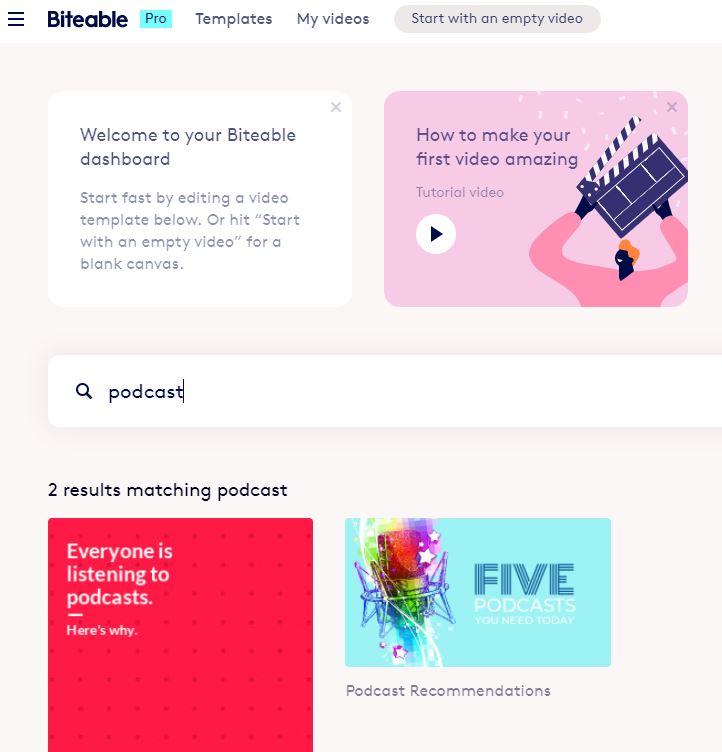
Dashboard of Biteable Screen


This is an introduction video from the company on how it works.


Advantages

Once you get the hang of it you can quickly create a podcast audiogram. You can create audiogram videos for the various Instagram, Facebook and YouTube formats

You also have access to animations, audio, and video assets.

You can upload your audio narration.

My 30-second test video mp4 video download was quick. Your experience could be different.

The free version contains two watermarks on the video and downloads as a 720p video. For a podcast audiogram, that should be enough. If you have video, it may or may not be an issue.

Disadvantages

No Captions/Subtitles

There is no native captioning/subtitles. For education creators that could be a concern. 

You could manually add text on an image. Some of the image or video layouts may not be accommodating to displaying text on the screen.

Audio Narration Fade Out

You can select music to go with your podcast audiogram. You can also uploading your narration.

Which I did; had my album cover and my audio.

I discovered that the audio faded out before the narration was completed. 

It took a bit to figure out that you can add a duplicate screen of the album cover. 

This will allow more time. I added two additional duplicates. That solved one problem. But that created another problem.

Accessing Support

I needed to trim the silent time from the end of the video. When I went to look for the help pages or FAQ, I couldn't find it. There is a menu option for support. 

I typed in the word "trim" because now I had too much image and not enough audio. 

I was given suggestions on an un-related topic. I could have done a chat session. I chose not to do that. 

I went back to their YouTube page and watched another demo video. I eventually got an answer.

Editing and Deleting Assets

If you work with a template you might find that you need to remove certain assets. 

Removing the text blocks is very easy. But if you wanted to change a video or remove a scene you have to find three dots on the audio or video track. Left click on the track and they will appear. Click the dots and select delete scene.

To a new user who hasn't seen the training video, it isn't obvious.  I think the idea is to for users to make a few text or image changes to the template and let it rip. 

Summary

Bitable has a lot of pre-made templates to help creators get started. If you want to get a look at the templates, you can check out their YouTube channel

Has it improved? Yes, absolutely. 

For novice video creators, this could work as a simple podcast audiogram generator.

If you are a creator that has to churn out social media ads, podcast audiograms or other content this might work for you. 

If you need power and control over every element then go hug on Adobe Premier or Vegas Pro.


Saturday, March 20, 2021

Create Podcast Audiograms with Veed.io

There are dozen's of podcast audiogram services that have easy interfaces and one that are not easy but give you a lot of flexibility. The trick is to find the service for you, your budget and skillset. 

This is a quick look at a service called Veed.io

What You Will Need

The website would like you to register/sign in. However, you can actually give it a test run without a  account if you land on a template information page. I appreciate sites that let's folks try before you subscribe.

Devices:

iPad/Mac/Linux/Windows via a browser.

Assets:

Podcast album art

Audio recording - mp3 or wav format

Getting Started

Looking at the Create section of the Veed.io website is like finding a needle in a haystack. 

There are a lot of templates that do similar things. The template make it easy to get the task done but you have to figure out which one gets you closer to what you want. 

At the time I was checking out the site, there was no podcast audiogram template. There is a Voice over Video template. There is also a music visualization template, if you want a sound wave image.

Both of those will get you in the neighborhood of a podcast audiogram. This is a tutorial video from the company.


Advantages

Once you land on the right template page, it is an easy process. 

The free version has a watermark in the upper left corner and you are limited to under 10 minute podcast audiograms. 

The videos will be rendered in 720p. If you are uploading an album cover and voice that might not make a difference to you. 

In addition to the tutorial videos on their YouTube channel, you have instructions about the various styles and their other apps, services and social media tips. 

Other than that, there is no other support for free users. Paid basic users get chat based tech support, 1080p videos and 20GB of storage.  

Disadvantages

It was a little fiddly to get started. But once you get use to the interface, it was bing, bang, boom and you are done. I had to find the right how-to information page for audiograms. 

Sometimes I'd click something on the main website and was bounced to the YouTube channel. Where there a a lot of videos. And yes, there is a filter at the top of the YouTube channel page so that you can search for a specific term. 

I don't always remember to do that. 

Once you land on the right template, don't assume that there isn't addition options on the screen. You might have to scroll down to see them. You necessarily have to accept the default items. For example, I found out by accident that there were more sound wave options.

Summary

If you are a hit it and quit person who wants to make videos, you will like Veed.io. All you have to do is add your assets, make a few tweaks and get an audiogram. 

If you have to crank out podcast audiograms this makes it bone simple. I'm thinking about people that want to change the album cover every week but everything else remains the same. 

I'm also thinking of those folks that do not like timelines. or traditional video editing programs.

I liked the easy way I could correct the transcription but in my test video it was very short. If I had to clean up more than a minute or so, that could be a concern. 

I also liked the ability to make gifs from a video - I can see an education use for them and this is the easies way I've seen without having to subscribe to a gif service.

For non-tech folks it is certainly an option.


Sunday, March 14, 2021

Demo of Podcast Audiogram with Adobe Spark Video

June 2022 Update:

Adobe Spark is gone. History. It has been replaced with Adobe Creative Cloud Express

The post below is for historical reference. 

This is the full demonstration of how to create a simple audiogram using Adobe Spark Video.

I intentionally limited to creating a very simple podcast audiogram, however Spark Video allows you to add text, captions, music and other design elements. 


The free version gives you access to everything you need but the video will be watermarked.  If you keep it simple and uncomplicated you will do fine. Start loading it up with everything and the kitchen sink, and there will be issues. 

I have to say I've tried using Adobe Spark Video for a number of years. I've had crashes. We've cussed each other out. I think we are now at a point of understanding.

Respect it for what it is. 
It is an opportunity to simplify.
To be creative within the limitations.
To embrace that minimalistic view about Adobe Spark Video will give you peace of mind. 

One issue I should have gone into more detail in the video. If you upload a clip from your podcast using the music upload feature you might have to chop the audio into clips. And there is a chance that Spark Video might believe that you uploaded music and start to repeat your audio at the end of the video.

Nothing a little tweaking in a video editing program can't take care of, but you should be aware of it. 


Sunday, March 7, 2021

Adobe Spark Video for Podcast Audiograms

June 2022 Update:

Adobe Spark is gone. History. It has been replaced with Adobe Creative Cloud Express. 

The post below is for historical reference. 

The software/app provides an interesting way to create a simple podcast audiogram. It is a wee bit quirky but it does work. If you respect the limitations.  

Adobe Spark Video is a grand lesson in managing expectations. This isn't Adobe Rush. It dang sure isn't Premier Elements or Premier Pro. It is a niche product that can do limited things very well. 

What You Will Need:

An Adobe Account via:

  • an email log-in
  • an existing subscription to Adobe Creative Cloud
  • a social media account from either Google or Facebook
Devices:

  • Chrome via browser
  • Mac or Windows on-line via browser or desktop application
  • iPhone or iPad

There is no Spark Video Android app at this time, but you might be able to use the browser version. There is Spark Post for Android that can design and animate graphics.

Assets:

  • Podcast album art
  • Microphone (Optional)
  • Audio recording - mp3 format

Test of Voice Only Video


Test of Music Version


Advantages:

You can record directly into the app. You can also upload your own music or a mp3 voice audio clip.

Let's talk about that. You can do that and attach it to your slide. It needs to be short, like under 30 seconds. 

The software thinks that you are uploading "music." You might find that the audio clip might repeat again at the end of the recording.

You can do customizations, add stock music, access some free stock photos and image icons.

The free version does almost everything you need to produce a simple podcast audiogram. You will have an Adobe Spark watermark on the video.  To remove the watermark you can purchase a monthly or yearly subscription to have it removed.

Disadvantages:

Based on my prior experience with the software, I would say that there is a safety limit of about ten seconds of recording per slide. Yes, it does indicate that it can go to 30 seconds. 

I would not trust it. I have had crash and burns when I tried to overload what it could handle.

You could duplicate the slide to gain more talking time. That would work. 

You can upload video. If it is 30 seconds or shorter. Load fifteen minutes if you want to. You will only see or select about 30 seconds of the video. 

Free version contains watermarks on image, a credits page and a non-removal page banner from Adobe. Ethically speaking, these items should remain on the video. For the non-ethically impaired, pay for the App or don't grip about it.

You really should read or be aware of the Community Guidelines and the Adobe Terms of Service

The short version is they own their stuff.  You own your stuff. Don't steal other peoples stuff . If you do stuff that is illegal, hateful or violates the terms of service you are gonna get bounced. Know that your podcast audiogram might not be the kind of content that Adobe would want to associate with their brand or community. 

Summary

With a bit of tweaking and elbow grease you could make something interesting. There are easier and slicker apps that can make an audiogram for you. If you can work around the limitation, there is gold in them there hills.

Tuesday, March 2, 2021

Podcast Audiograms - An Introduction

Folks are looking for various ways to promote their content. Or increase awareness. 

One way to do that is by using a software program to create an audio single slide movie. 

Commonly known as a podcast audiogram. Not to be confused with the hearing diagnostic evaluation also called audiogram. Other names for it are Soundbites, Audio Clips, Audio Visualizations and Trailers.

One more thing. There are music visualizations apps for musicians to upload music with a synchronized visualization. Some of those apps and software have overlapping similarities with podcasting audiogram creation apps. There is so much stuff out there. 

The music visualizations are used by DJs and musicians to post their work to the public or draw them to websites. I could also see this working for poets as well.

Where was I? Oh yeah. 

On the basic level, it is the joining of an audio sound file and a photo mashed together to make a video. Once you have the video, you can post it on social media sites.


Podcast audiograms can be used:

  • an introduction to a new podcast.
  • as a teaser clip of an episode.
  • as a full episode of a podcast, depending on length.
  • promotion tools and more.


Creating Podcast Audiograms

It is as easy or a hard as you want or need the process to be. Not being cryptic. 

If you are a desktop user, you have everything you need. However it isn't necessarily easy.

For example, if you have a slide presentation program like Keynote or PowerPoint, you can make an audiogram. But you need experience with the software, understanding audio, image and video formats for your social media services and put the whole thing together. Not for newbies.

Or you have video editing software, create an image track, an audio track, import your assets and export to .mp4 video. You still have to make sure it conforms to various social media requirements.

Smartphone apps can make the process easier to make but you might lose some choices and options. If you want more options, you have to pay for them.

There are on-line services like Headliner, Invideo and Wavve that really make the process easy. And if your audio hosting service has an affiliation with one of the above services it is twice as easy.

How Much Is This Going to Cost?


Depends. Anywhere from free to $150 or more a year. 

Freemium kind of deals - you get all the services however a logo could be watermarked into the video, you get a lower resolution or some other kind of limitation.

Many of the services offer a subscription plan with added features, social media formats and sometimes storage.