Showing posts with label Glossary. Show all posts

Monday, September 9, 2013

Smartphone and Tablet Fixed Aperture Issues

The aperture or iris is the opening that controls how much light is allowed to enter your recording device. Most Smarphones and Tablet cameras have a fixed aperture. This means it cannot be changed or adjusted by a ring on the camera or by software.

Oh, dang it. Sony just released a new product that allows a lens attachment to a smartphone. This always happens when I make absolute declarations.

For most of the native cameras that appear on mobile devices you can't change the aperture.

What Is the Aperture on Mobile Devices?

Manufactures make educated guesses about where the majority of their users will take photos and videos. This is a quick sampling of Smartphones out in the wild:


Nokia Lumia 925

Nokia Lumia 920 f/2.0 aperture
iPhone 5 f/2.4
Samsung Galaxy S3 f/2.6
Sony Xperia S f/2.4

Hmm,  f/2.0 is a fast f/stop that allows a lot of light into the device. It will do a good job with daylight outdoor recording. Indoors you will need additional lighting to ensure a good recording.

The recording area that will be in focus will be limited; so items up close will be in focus those at a distance will be out of focus.

This is called Depth of Field. You will have to move closer with your feet (if possible and safe to do so) to ensure the video being in focus.

Your eyes can compensate, the camera cannot. 

Ideally, you want to record in well lit situation with your subject close to you. One more factor to consider; shaky video.

The Shakes

You are going to need to stabilize your phone. That can mean leaning the phone up against a wall or purchasing a stabilization device like the Woxom Sling Shot. You might have a software application that helps to stabilize video. You will need to use it.

To Recap:

You'll need to be aware of your lighting conditions. Too much light and your video will be overexposed. Too little light and folks will not be able to see what you have recorded. Smartphones and Tablet cameras like daylight the best followed by sufficient indoor lighting.

When recording in f/2.0  - f/2.8 you will have shallow Depth of Field. This means that subjects close to the lens will be in focus and those further away will be out of focus.

Stabilize your recording; either by bracing against a wall or chair, use a mobile stabilization device or the software stabilization that came with your phone or tablet.

Other Posts of Interest

Sunday, September 8, 2013

Aperture - VidGeeky Word of the Day

Let there be light and enough of it. If you have a recording device the one this you need to understand knowing when you have enough light to record video.

Before you can answer that question, you need to understand about aperture and f/stops. This is a brief introduction.

I am going for concept and not necessarily the most technically accurate explanation. In addition, there are a lot a factors that can affect the quality of a recording. The size of the image sensor, distance, the type of light and the diameter of your lens all play a factor in making a quality video.

Example of an adjustable aperture in a lens

I want to focus on this one aspect of recording that can solve a lot of video exposure problems.

What Is Aperture?

Aperture is the opening your camera or recording devices lens uses to allow light to make contact with film or an image sensor.

Sometimes aperture is referred to as the iris of the lens but no matter which term is used the concept is the same; it is the size of the opening that allows light to pass through to make a recording.

This is where it gets a little confusing but it will make sense in a moment.

 
F/Stop Scale from Wikipedia

The wider the aperture the more light comes into the device. The smaller the aperture the less light comes into the device. That makes sense.

The scale used to describe the opening of the aperture is called an f/stop. This is where it gets a little dippy.

The smaller the f/stop number the bigger the opening.  f/1.4 is twice as large as f/2.8. Or the other way to think about it, f/2.8 allows half as much light as f/1.4.

F/2 allows twice as much light as f/4. Or f/4 allows half the amount of light as f/2.

Fixed and Adjustable Aperture

There are two types of apertures; a fixed aperture and an adjustable aperture.

On smartphones and tablets it is a fixed aperture; generally around f/2.4 and higher. Consumer level camcorders also have a fixed aperture. Camcorder users might have a work around that  smartphone/tablet users do not have but you still need to be aware of your lighting conditions.

Standard digital cameras that record videos, Micro 4/3 Cameras and DSL Cameras have adjustable apertures. You can select the most appropriate f/stop for your situation but some of those cameras don't allow adjustments as you are recording video.

Yeah, So?

Be aware of the light around you and your recording device ability. It will help you make a better video. If your smartphone has an aperture of f/2.8 and your are recording indoors with a single light bulb that isn't going to be a very good recording.  At f/4 it might not even be visible.

Standard camcorder outside in bright sun with an f/2 lens might be too much of a good thing. On a cloudy day it could be perfect. You might have to make location or other types of adjustments.

Digital cameras that record video, Micro 4/3 Cameras and DSL Cameras have adjustable apertures. You can select the most appropriate lighting for your situation but some of those cameras don't allow adjustments as your are recording video.

Know what your equipment can do.

Other Posts of Interest

Wednesday, September 4, 2013

File Format - VidGeeky Word of the Day

A file is a digital item stored in a specific format. Video can be stored in a wide variety of computer digital formats.

What format does your device record in? If you did you homework before purchasing you should be able to answer the question.  It is also a trick question because there is a kind of a default standard for personal or consumer level videos.

The file format refers to how your video is stored on your recording device. Some of the active video file formats are:
  • QuickTime .mov
  • H.264.mp4
  • WebM
  • WMV
  • AVI
All of the above are a specific type of file format for recording video or playing back video in a compatible player or device.


This Samsung Records in the .mp4 format


This was more of an issue back in the day, the day being about eight years ago. A person would record video and then they would need to make sure that the video recording was compatible with the video editing program or the playback device.

The default video format on most consumer camcorders, smart phone and tablets is mp4. There is a effort to open up to a non-proprietary standard.

I wish I could leave it at that but there are variations in the mp4 video format.  You probably will not have a problem with recording and playback of mp4 videos.

Generally.

Most of the time.

Okay there are exceptions. If the mp4 video leans more toward the Apple implementation of mp4 then it could happen that the Windows Movie Player could have an issue with it.

Or if mp4 video was constructed to work well in a Windows OS environment then the Apple QuickTime player might have a problem opening the file.

Or not.


Other Posts of Interests

Monday, July 22, 2013

New Export Options for Windows Live Movie Maker

I haven't looked at Windows Live Movie Maker for a while. It had been so long since they had made any changes to the product that I assumed it was locked in amber. There is so much going on that you forget to touch base and review program updates.

In the immortal words of Benny Hill, who probably nicked them from somebody else:


It is now easier to share your content using this video editing program. You might not need a conversion program to crowbar the video into a tablet or other devices. 

There has been a significant changes to the export options. Let's take a look.


This is the new export menu. There is a word that never appeared in the prior version of the program. I never expected to see it in a Microsoft product. The word is "Apple."

For the longest time, Microsoft refused to acknowledge the Apple format or products. Would not import or export to that format. Until now. The almost universal acceptance of video in the .mp4 format has helped moved them from the .wmv format.  This is a huge step for them.

Common Settings


Under the heading of common settings are options to export under specific file formats.


If you hoover your mouse cursor on top of the option you can see the display size, aspect ratio, bit rate and estimated file size per minute. What you will not see is the file format. You have to select the item and you will be able to see the file format in a Save window.

  • HD Display .mp4/H.264
  • Save To Computer .mp4/H.264
  • Burn a DVD  .wmv
  • For e-mail .mp4/H.264

Phone and Tablet Devices

New to the export menu are tablet and smartphone export options that are not entirely Windows based. There is even a setting for exporting to feature phone video.


Before you turn up your nose in disdain please remember that there are millions of potential viewers using feature phones around the world. They cannot view data intensive videos. This is an excellent option for those folks.

In Windows Live Movie Maker you now can export video compatible with Apple and Android devices.


For those of you that want to view your creations on your tablet devices or use those devices as a video delivery system this is your spot. Transfer the video to your device and then you can hook it up to a television or projector. What is not to love about that?

Video Web Host Services

Yes there are other web video hosts besides YouTube. Plenty of them. And almost all of them want video submitted in a specific bandwidth, bit rate and audio format.


SkyDrive isn't a web host; it is Microsoft's cloud storage. My understanding of this particular use of the service is that you could upload a video to the cloud and then view the video on a tablet or have other folks access the video from the cloud location.

Finally, you can also make your own custom settings or just extract the audio from the video.

I will have to review Windows Live Movie Maker again for other changes they might have updated to the program.


Other Posts of Interest

Wednesday, July 17, 2013

Muvee Reveal Express for Creating Poetry Videos

There are folks that write by hand and there are those people who write using a device like a typewriter or computer. It is the same creative process but different tools.

The Muvee line of video creation software is designed for busy people, novice users or other folks that want to create but do not have the time or the tech skills.

The entry level program, Muvee Reveal Express is a $20 version of their main product. There are limitations to this software but inside of those limitations there is a quick and painless way to create a video poem. There is a Windows and a Mac version of the software.

Who Is It For?
  • Poets that take photos.
  • Poets that want to do audio based photo story type narratives.
  • Poets that want limited controls, gears and buttons to push in order to create a video.


Main Composition Screen


Muvee Revel Express allows you to combine photos, standard definition (SD) video and audio to create a video very quickly. The program comes with three animation styles to apply to give your video a certain look or feel.

Advantages

You really can quickly compose a poetic narrative story. For those folks that are time and money challenged this is very important.


Photo Caption Window


You can add captions to photos if you do not want to add narration. You can add your own audio or music. You can mute audio on videos but not edit it.

Disadvantages/Limitations

It will not allow you to import high definition (HD) video. This is a deal breaker for many people. You can purchase the software called Muvee Reveal that will accept HD video.

You cannot add any effect or customize photos or videos. That has to be done in another application.


You have no control over the styles; you cannot customize them. If these are not to your liking you can visit the Muvee website and find a style more to your liking. You can go to the website and purchase a more neutral photo animation style that fits your needs.

The video output is 640x360 standard definition. It is a pseudo widescreen format. Your output choices is either video in the Windows .wmv format or the early iPod/iPad form in .mp4. You can also upload directly to YouTube.

I believe that YouTube still accepts the .wmv format for uploading but the other video web hosts will not. The iPod/iPad option saves the .mp4 video in the iTunes video folder. If you have iTunes it will open that program. Even if you don’t want it to. You will need to be able to navigate to that folder to retrieve your video.

Working Within the Constrictions

Poetry is about getting an idea, feeling or concept across in a set amount of words or images. With this software you are forced to look at the photos and videos to place them in the correct order for your piece. You can’t add any bells and whistles; there aren’t any.

You could use this software as the base composer and then use another software program to tweak the video or add your own custom Intros and Outros.

Think of Muvee Reveal Express as writing a Haiku poem. There are structural limitations. Working inside of those limitation can produce good work.

Other Posts of Interest

Sunday, June 30, 2013

Pre-Ramble on Android Video Creation Tools

Those of us on the Android side of the fence may feel pangs of envy when looking at the software apps of the iOS world. With good reason, there is some wonderful, functional creation apps in that realm.

However, for a multiplicity of reasons, we are Androidians. And with some of the new inexpensive smartphones and tablets about to flood the market there are going to be millions more Android users.

People want to create and they will use what they have in their hands. I think it is time to go a little deeper into Android video creation tools.


Before you can create a video or a visual story you have to be aware of equipment issues. The equipment issues are directly connected to the apps. It can happen that you download an app that cannot work with the device.

Some apps will work better on a phone than on a tablet and vice versa. Many will require an active connection to the Internet via Wi-Fi or phone service. You want to know this before your install anything.

Things to Be Aware Of


Operating System 
There are different versions of the Android software. The current version at the time of this posts is Jellybean 4.2 and climbing. If your operating system is Gingerbread 2.3 or older back to Eclair 2.0 you are probably locked out of many of the current video creation apps.

For people on older operating systems you may have to look at web apps for creation software. I will add some of those apps as a resource.

Intended Device
Many of the applications are intended for a specific device, such as a smartphone. It might work on a tablet but it wasn't necessarily designed for tablet users. Before installation read the details about the software.

Your Device May Not be Up to Snuff
That smartphone you got at a great price might be just what you need for Facebook or Twitter. It might not be able to handle some of the video creation or story telling tools in the market place.

In the coming months, major manufactures will release 2nd tier versions of their tablets. Something has to give to get that lower price point. Single CPUs, lower resolutions and cheap body builds come to mind.

I've seen $99 tablets in office supply stores that are going to get some of the Frugalistas thinking about buying it. (Don't do it!) In addition, there are Asian vendor knock-off tablets that are using the Android phone operating system inside of the tablets. Not the same thing as the operating system designed for a tablet.

The CPU is what is going to snag most people. Your device might only be able to do one thing at a time. And it will do it slowly. That El cheapo phone or tablet can cost you time and frustration.

For example:

On my knock-off tablet, I have Android 4.0 using a phone version of the operating system with a single CPU/core processor.
  • Plays .mp4 movies well. 
  • Low demand apps works fine.
  • Connecting to the Internet, slow but crashed if web site has multiple things going on. 
  • Some browsers do not work, or cannot display videos from YouTube and other sources.
  • High demand apps crashed on regular basis.

Don't Go Chasing Waterfalls
There are other Android app vendors markets besides Google Play and Amazon. If you are not an experienced user or you don't want to invest time learning how to remove malware stick with the know app stores.

As a rule, I like going directly to a vendor's web site. I also check out the app store reviews.There should be some type of public presence of the app. Has it been reviewed by a tech magazine or web site? Are people grumbling about it in Android forums?

If something goes wrong you have a backup and restore feature on your device?

You do back that stuff up, right?

My point in all of this is I want you to know what your device can and can't do before you get started creating.

Other Posts of Interest

Friday, May 24, 2013

Bandwidth Experiement Using iCalc Bandwith Calculator

There is a saying. You want to make God laugh? Tell her your plans. I have been having trouble maintaining a stable Internet connection so my intended experiment on making upload a good quality video on a slow bandwidth connection has to be kicked to the curb.

Not to say that I haven't been in research mode. There are dozens of video bandwidth calculators. Most seem to be for corporate or live stream video upload calculations. For example, there is an event with x amount of participants viewer this much video content.

These type of calculators figure out the bandwidth and then figure out the cost of said bandwidth. 

Not what I was looking. And then I found iCalc. For the record, I am not a broadcast engineer, nor can I construct the formula to figure out how to do this in my head. 


http://www.ibeast.com/content/tools/band-calc.asp

The problem I was curious about is that I have a standard 720p video. How little bandwidth do I need in order to upload it?

On the temporary mobile WiFi service I have I'm lucky if I can get .5Mbps on the upload side of the fence. Limitations can be good for creativity but not if you can't run the test. 

Except in a way I can.


I created a one minute 37MB sample video that contains full audio and video. In the calculator I enter the size of my video and select MB. What you see in the image is the upload times for the video at different connection speeds.

Now 40 minutes isn't that bad for a home user on 128k ISDN upload. It isn't great either. With my current connection it is dicey if the connection holds for 40 solid minutes.

Drop below ISDN speed levels and it could take days to upload anything over 15MB. 

If you at an Internet cafe or some kind of metered experience this is not a financially or functional solution.  

Well, I can stand no more of this. I need speed. I'm waiting on the mail carrier to deliver me from this state of Internet interrupt-is. There is much to do and this is no time the sluggish connections.

Other Posts of Interest

Saturday, May 18, 2013

Video Bandwidth Definition and Considerations

Understanding bandwidth is a part of the process of creating web video. Now granted, with Smartphones, direct mobile upload services and Apps like Vine thinking about bandwidth may not be relevant.

Then again, you could find yourself in a hotel room or cousin’s Mickey bedroom with a slow connection and you have a video that you have to transmit using a less than speedy connection.

So to kick this off proper I think a definition post is in order.  I am going for simplicity. Clarity. Conceptual understanding.

What Is This Bandwidth That You Speak Of?


Bandwidth is the amount of data that can move between connection points on a network in a certain amount of time. Depending on your Internet connection speed you might be restricted to a specific amount of data that you can send and received.

On a computer/Internet network that speed is measured as bits per second.

For example, on a 56k modem it takes much longer to move data from one connection point to another. On a T3 line it happens in a blink of an eye. Video has more data than a text file or a web page.

The more bandwidth you have the faster the video can make the connection to the desired location. I now hereby invoke the Tubes comparison


The imaginary tubes of the Internet

If the data that makes up the video is small it can pass through a 56k connection in a reasonable amount of time. If it is a 50MB that is being transmitted via a 56k modem the data has to be broken up into small packets, pushed down the line and then re-assembled at the data location.

In a perfect world this would take a lot time. Things are not perfect. You have your anti-virus/malware program checking in, your email alerts wanting attention, and iTunes trying to update itself again. Or you have a bad phone line/Internet connection.

And it isn't just one pathway; it is a network of other users sending and receiving data. Billings of data files zipping from one point to another.

It Not Just About You


The person or service receiving your video is going to have issues as well. Sending a large file to a user that has limited connections speeds or data access plan is not helpful. They can’t even download it to see it.

Some e-mail programs and services have restrictions on the size of the e-mail or data file that can be sent to a user. You could send it to a cloud service but the user could still struggle with waiting for the video to buffer enough to play.

The Balance Act


After you finish creating your video you are going to compress it to a particular video size and format. That could alter how the video looks. Can't make it too small, too big or compress so much that the video is hard on the eyes to watch.
 
I think an awareness of how bandwidth can affect potential viewers of your video is a good thing. I think we as creators can make design or compositional choices that would not only improve the video but could shave a megabit or two off the video.

Does it really need to be in stereo?
How many transitions/effects do you need?
Can I find the sweet spot that balances all of the various users and delivery method?

This was more of an issue in the early days of web video but people have gotten sloppy and complacent. With the growth of mobile media and inexpensive tablets we might want to revisit how best to compose a video for multiple viewers.

Other Posts of Interest

Monday, May 6, 2013

Cheap, Easy or The Best Video Editor

If I read it once I've read it a thousand times. People, generally young people but that would be an ageist statement, are on the look out for a free, top quality video editing program.

I get peevy at this; no mention of what they are using, what software platform they are on or their experience level.

The cyber cup clangers don't tell you what type of recording devices they have or how they plan to display their works.

Catching my drift? True, I'm a little cranky but I'm tired of that critical thinking thing not kicking in to play.

That was harsh.  I don't mean to be. So let me try to embed some critical thinking concepts as I work my way though this challenge.

Cheap and Device Independent


If you are a YouTube member you do have access to the Editing function. You can upload a video in Private mode and then edit your video, add transitions or add a sound track. 


Once finished you can post the video to your channel.

The downside:

  • Video can take a long time to upload; if you are doing this on a mobile device you might tap out your data allowance.
  • Using the YouTube Editor audio content or other assets might result in a commercial being shown before your video. And no, you do not get to profit from it.

Easy and Operating System Dependent


If you are on Windows operating system you have Windows Movie Maker. If you are on the Macintosh operating system you have iMovie. Both are designed for novice users. If you can type in a word processing program you can use this software.

The downside:

  • Windows users - depending on what version of your operating system you might have it installed. If you are using Windows 7 or later you have to download it from Microsoft's web site.
  • Mac users - I believe you folks have to purchase the iLife version of iMovie but at $15 why kick about it?

The Best


The best video editing software is the one that you take the time to evaluate based upon the resources you have, your recording device and your skill level.

I will not stop you from paying $800 for Adobe Premier. But it might not be the right choice for your situation. At $999 Avid Media Composer might send a shiver up you spine but if you are just crafting basic web videos I think it would be overkill.

Before you download anythings you have to do a personal assement of:

  • What are you using to record video and what is the file format
  • What it is that you want to do with your video?
  • Where will the video be viewed?
  • Do you like to tinker? Or do you want it wham, bam thank you mam?
  • How much time do you have to work on a video?
  • How much or how little money do you have?
  • The condition of your tablet/computer system; can it handle video editing?
  • What products are available to me that will help me get the job done?

These are the questions you should ask yourself long before you ask about the best free video editing software.

Other Posts of Interest:


Monday, August 27, 2012

Glossary - Interstitials Videos

YouTube now has a feature where you can add an interstitial video to your playlist. When viewers come to check out your channel or when they move from one video to another they can see a promotional video that introduces, explains or brings viewers into your world.

You can get more info at the YouTube Creators blog post about it.  Interstitial videos are hard to pin down but there is a larger meaning, and opportunity, than the way it is used on YouTube.

An Interstitial video can be a video that supports a main or primary video. It can be for promotion. it can be to transition your viewers from one place, the real world to another.

Interstitial do not have to be connected to your main video. In cable television, they act as a filler between programs of unequal length. Or to add bonus content that doesn't fit in the main program.  I am being American centric, sorry to the international folks.

Not to worry. University of Nottingham's Words of the World has a good BBC/UK centric definition of Interstitial video.


Let me give you some American examples:

Masterpiece Theater - The host provides the context of what you are about to see in the program. The front part introduces the environment that the program is set and the back interstitial talks about the historical facts about the fictional program you just viewed.

The Making Of videos that appear before a classic/popular movie. These are often promotional pieces created by the original studio that can be plugged into a feature presentation.

Turner Classic Movie bumpers that look at a specific Hollywood star and why that performer is important.

On Transit TV (before they had a serious financial dip) use to air animation shorts and experimental video clips in between programs. They have now switched to airing video podcasts. They love Jace Hall.

So the opportunity here is to think about what you want your viewers to see when they click on a playlist in your channel. Or if you don't do channels that way what about bonus stand alone content that will lead folks to want to check you out.

You do videos on beekeeping and you want to do a short stand alone piece about smokers. That can be a topic for an interstitial.


Related Posts

Thursday, August 16, 2012

Glossary - Understanding Markers for Video Editing

In a video editing program there are times when you need to have a visual flag to help you remember the starting and stopping point of an activity in the video. In some of the entry level video editing programs and in almost all of the professional editing software you have the ability to add a Marker.


A Marker is a visual flag that you can set up to remind you of the names of the participants, the start of a line of dialog, a time point or whatever you want to be reminded of in your video.

Another cool thing about them is that you can re-label the default name and add more descriptive text.


Other Posts of Interest

Thursday, June 21, 2012

No, I Don't Make Viral Videos

I was recording performers at Make Music Pasadena and a person came up to me and asked if I was recording a viral video. That surprised me. I responded, "No, I like to record videos for my blog."

"So you are not going to make money off of this?"

"Nope, I don't think so."

Actually, I'm real sure I'm not gonna make a penny. In fact, I had a memory card go bad on me and had to buy a new one so I definitely lost money last weekend.

Still, that question bothers me.

What Is A Viral Video?

It doesn't exist. Yes, I know people use the term viral video but that is a lazy short hand for a concept.

You could say that it is a video that gets popular. It is shared quickly via various communication paths such as Twitter, Facebook, blogs and friend to friend communication. It can be a news event, a performance, an ad or an inspirational video.

There is something inside of the video that causes people to be motivated to shared quickly. Very quickly.

Can You Make A Viral Video?

Intentionally, it is possible but dang hard to do. There is not a PR company or advertiser that isn't working on creating the next Old Spice Guy campaign.

Case in point, the unofficial, not sanctioned or approved by Wrigley or Skittles, the "Honeymoon" commercial. Not safe for work or thinking people. It is a proof of concept advertisement I guess.  I'm not displaying that video. You can check it out yourself.

People were talking about this ad, which is really a promotional reel by folks who want to be hired to create more commercials. Nine million plus people have seen the ad. 

What can I tell you? Sex and Skittles sells. The surprise element. The sadness I feel about the continuing coarseness of our culture? Wait, that doesn't belong here. Oops, my bad.

There have been other ads using sex and Skittles, just not at the same time. This one video lit a fuse.

My point is that you can't make a video viral. There are videos I think should be mandatory viewing because they are important in message or clever. I share them on Twitter or G+ and I can say that not a one of them has ever gone viral.

I would love it if the Richard Dreyfuss speaking at the Library of Congress video would have nine million viewers. Because I think reclaiming civic discourse is important. At this time it is up to 442 viewers so, yeah this is going to take some time to get to nine million.

What About The Money Thing?

Um, no.

Look, viral videos become popular because of the speed of transfer from one person to another. They do not have any pay per view options. You are not going to get rich in an instant. What may happen is that people that are curious about what you have to offer will check out your stuff.

Or not. I don't use Old Spice but I did view that commercial. I'm not into Skittles but a lot of people love them.

If your video does become extremely popular you need to be ready. But it may never happen.

Now if you have a per-existing relationship with an audience like Louie CK then yeah, you might cash in. Don't forget that he is a professional comedian in the business of knowing his audience. Louie CK understands about new methods of distribution and making a product that sells.

His video didn't necessarily go viral. It was the concept of him creating a movie of his performances and selling direct to the audience by allowing them to download the movie before buying it.

That is what went viral. By passing cable networks, DVD distribution and network censors and being successful at it will make people talk.

That fake Skittles ad generated word of mouth and maybe down the road someone has or will hire the company. It is just as possible that folks would exclude them as well.

In Conclusion

No I don't make viral videos. I want to get better at making a quality video. Yep. That is where I'm at.

That is where I want to be.


Other Posts of Interest

Thursday, July 14, 2011

Good Explaination of 720 and 1080 HD Video

This is a dang good video that defines the terms interlace and progressive video and what the hubbub is about concerning 720p and 1080p HD videos.

It is spot on about helping you understand what your camcorder can record and how it does it.


This video was created in 2007; at the time there were limits as to the length of what you could upload to YouTube and the type of videos you could upload. Although he is talking about high definition videos the actual YouTube video displays at 240p.

I went looking for more about TechnologyEvangelist.com but it seems that everyone have left the building. The site is on hiatus and the principle writers have gone to new projects.

Thursday, June 23, 2011

Bing Chen on Growing YouTube Audience

I'm doing the insanity dance of juggling too many things at the same time. Wanted to make sure that folks checked out this video by Daisy Whitney's New Media Minute.


This is a clip where Bing Chen talks about what you as a video creator can do to attract and keep your audience. It is about engagement, tagging, being consistent and all of the stuff that you will not find in a get rich quick guide.

Too hip, gotta go.

Tuesday, May 24, 2011

A Corrected Look at iFrame and the Connection to Videos

This is a correction to my original post. I have made a mistake. I understand how I made it the error but I have no excuse. I don't want one.

I should have taken more time to verify my understanding of the Apple iFrame codec and not just look at the reference sources for the HTML code used to place an object inside of a web page.

HTML code and a video codec are not the same thing.

I honestly did not consider that Apple would appropriate the name of a HTML code for a codec name. Yet I should have questioned why a video codec was in a list for HTML codes examples.

Then again with all the talk about HTML 5 video ....

Naw. That won't cut it. I need to make this right.

Apple iFrame Video Codec:

From the Apple Web site about the Apple iFrame Codec:
iFrame is a computer-friendly video format designed by Apple to simhttp://www.blogger.com/img/blank.gifplify the process of working with video recorded with your
Features of the Apple iFrame Codec:
  • H.264 mp4 video
  • Video dimensions are 960x540
  • Audio records in AAC
  • Smaller video file size
  • More compatible with iMovie and Apple friendly applications.
But wait, there is more. According to Camcorderinfo.com information page:
Videos recorded in the iFrame format have square pixels and a 16:9 image that is half the resolution of 1080p. The video is not HD, but iFrame does provide 1.5 times as many pixels as standard definition.
The Apple iFrame codec is compatible with the Apple iPad tablets. This is why your are seeing video web hosts providers making sure that the videos that are being shared can be viewed on as many devices as possible, including those that are owned by people that paid a grip of money for their tablets.

Reference Sources I Used to Verify Information About the Apple iFrame Video Codec:
HTML Code Called iFrame

iFrame is a HTML code used to tell a web page or a HTML compatible device where to display an item on a web page.

example of iFrame codeFor some of you that use embed codes to display videos on your blogs this is going to look familiar. The iFrame code is telling the browser the size of the video, where to find it, if there is a border around the object and the ability to show the object full screen.

Reference Sources I Used to Verify Information About the HTML iFrame Code:
So What Did I Learn Today?

Taking time to triple check information is never a waste of time. If I don't have time to verify the information is ok to skip a few hours or a day or two to make sure I have it right.

Wednesday, March 23, 2011

Have Shaky Video? You Might Need A Tripod

I know the shiny ad in the magazine or commercial told you that the camcorder has image or optical stabilization. It works but only up to a certain amount of movement.

The reality is that for extended recording sessions or if you are using the optical zoom function on your camcorder you really need a tripod or some kind of stable support.

Both photographers and video shooters use tripods but there are different types. First, an anatomy lesson.

Video Ball Head Tripod
Plate: The removable plate allows you to quickly attach or remove the camcorder from the main body of the tripod. There are some plates that have a level guide, on others the level guide is attached to the body of the shaft. Plates are available on both inexpensive and professional support.

Head
: The plate locks and rest on the head of the tripod; it also allows you to move the camcorder horizontally or vertically. The knobs on the head lets you control the amount movement or lock the camcorder into place.

Legs and Extenders: The legs of a tripod controls how high you can raise the camcorder. Tripods that have independent extenders also allow you do level uneven surfaces.

Still Photography Tripods

Tripods for still photography are designed to keep the camera from moving. They are also the most inexpensive types of tripods. For still and stationary video recording that could be acceptable.
However, if your subject moves to the far left or right, the effort to pan becomes a pain. You might see jiggers or jerky motion in your video. I use a still photography tripod and I have to tell you it has come to the point where I have to remember to actually pick up the tripod and camcorder and turn it; if I don’t I have guaranteed a jerky section of video.

Video Tripods

Tripods for video use a ball bearing type of head that allows for fluid movement. These are going to cost a bit more than the ones you find in a department store photo section. The cost may be worth it if you shoot sports or performance type videos.

What About Image and Optical Stabilization?

Eh, yeah. When you have that turned on the camcorder compensates for your hand movements. It is a great feature except that there are limits to what it can compensate for; not to mention your hands and arms getting tired.

So What Is the Deal About Optical Zoom?

Let’s say you are using the optical zoom function to bring the subject closer. When you do that without a tripod you are going to have the shakes. The more you zoom in the harder it will be to keep the camcorder steady. The shakes will really be visible in the recording.

So, What Do I Buy?


It is a trade off of what you can afford and what you need. A tripod is better than no tripod. Here is one way to think about purchasing, by the weight of the camcorder.

Point and Share Camcorder Under 1 Pound


These camcorders are small and light. It might be that the still photography tripod that came with the camera bag will do the job. I did say might because there are some crappy tripods that you really shouldn’t think about using. Those three inch all plastic with a single screw? Uh-uh.

If you don't have a tripod then looking at those models that are priced under $100 will be fine. Not perfect, but they will do the job of holding up the camcorder. Anything else is gravy.

Keep in mind that your should not really trust inexpensive tripods to totally support the camcorder. It doesn't take much to knock a cheap model down. Keep the tripod close enough that you can grab it in a second if something or someone knocks it over.

Standard Camcorders Over 1 Pound


It is dicey risking the camcorder placing a camcorder on inexpensive tripod. If you only need it for casual recording when you are using optical zoom then an inexpensive support is acceptable.
For example, I have a thin still photography tripod that I use for the poetry recordings. It is about 19 inches compacted and five feet extended. I can put it in my handbag or backpack. It works at holding up the camcorder.

It is not so great for smooth panning when a poet moves. I have to be aware of people moving near the tripod. There has been on more than one occasion when someone walks by I had to be ready to clutch a leg to keep it from falling.

Yet I needed something portable. It is the trade offs and learning to working with them.

Camcorders Over 2 Pounds or over $700

Prosumer and professional tripods are designed for working professionals. Stability and smooth movement are essential.

If your video recording is tied to producing income then yes, you will need a prosumer or professional level tripod. We are talking big American bucks but you get what you paid for and it makes you look cool.

I specifically didn't make any recommendations for a specific tripod. I can't.  I can give you an idea but each of you have specific needs. A $20 department store tripod might be just the thing for a Kodak Zi8. It is not something that you should use on a Nikon 3100.

I can recommend these sites for more information:

Darren Rowse from Digital Photography School on How to Buy a Tripod

MediaCollege How to Choose A Tripod

Tiffin is a manufacture of photographic products, I'm including their list on buying a tripod because they do go into detail about the different types and uses for their products.

Videomaker Magazine's article on Buying A Camcorder Tripod

Related Posts

Wednesday, March 9, 2011

Quick Look At Video File Extensions

A file extension is a way of identifying a computer file format. Knowing the meaning of a computer video file extension can save you heartache. It has advantages when you buy a camcorder or video editing software.

I bring this up because as I roam around the various video help forums there is mass confusions about the types of video and compatibility.

A video file extension can look something like:

dancingmoon.avi
00012.mts
chacha17.mov
100_00345.mp4
fandango.wmv

The last three letters after the . indicate the video file format. It gives you a clue as to the media player or software program that is associated with that particular type of video file.

Some of the more common video file extension are:
  • AVI - this is actually a container format but what the heck. The original .avi format could be opened by any video player, editing software or media device. There are now variations that are starting to cancel out the universal feature of .avi
  • MOV - This is an Apple/Quicktime video format. Files with the .mov cannot be opened in Windows Movie Maker or Windows Live Movie Maker.
  • OGG Theora - This is a Linux video format, I mention it because it is open source and places like Wikipedia or those supporter of an open video (non-proprietary) use .ogg to post videos to web sites.
  • WMV This is a Microsoft video file format.

Why Do I Need to Know This?


As much as possible you want to match your camcorder video format to the editing program of your choice.

For Mac users that means that if your are interested in point and share camcorders look to Kodak. The video files are in the H.264.mp4 MOV format. That will reduce your frustrations when you try to open in Mac specific video editing software.

If you need more than a point and share camcorder you'll need to do more research to find a compatible camcorder for iMovie, Final Cut Express or Final Cut Pro.

For PC users you need to know that as great as the Kodak line of point and share camcorders are you can't open .mov videos in Windows Movie Maker. You will need a video converter.

I'll need to discuss mp4 at a later date. It is a certain type of a compression/video format with multiple variations.

I have written a prior post about the problems of Mac users, iMovie and mp4 video conversion. There is also a post about Conversion Blues and dealing with .mp4 videos.

Sunday, November 21, 2010

Buying A Camcorder Specs – More About Image Sensors

Digital image sensors are used to record digital images and video. Like glass and film there is a wide range of sizes and quality. That quality is dependent on who makes the sensor, the size and other features of the camcorder.


Digital Image Sensor from Wikipedia

That is all well and good but as a consumer what should folks look for on the package or on the product specific detail?

Hold on for a half second – I need to dip into the past to make the present clear.

Kodak 110 film

This is an example of a Kodak 110 film negative. There are images on the 13mm x 17mm negative. Depending on the quality of the camera used the print could be very grainy or a small quality print.

Even if a quality 110 camera was used to take the photo there is only so much data or information that can be stored on the negative. There is also a built-in limitation on how large you could make the print.

A 135mm film negative (I just remembered that is the correct name) aka a 35mm negative is larger.


The negative is able to capture more of the image data, greater details and tonality. There is more surface area covered with emulsion to capture the details.

Like the man said, everything old is new again.

Small Censors Here is where the dollars and sense comes in to play. If you have a lick of sense before you purchase a camcorder look at the sensor size. If the sensor size is not on the package or web site spec sheet move on down the line to those vendors that do mention the image sensor size.

The digital sensor size really should be measured in millimeters but because video is involved there is a historical carryover from analog video tube technology. It is also a good way to hide how small the sensor is in reality.

Digital image sensors between 1/8 and 1/1.6 inches are used in cell phones, web cameras and most consumer camcorders.

If the sensor size is within this range, with other factors taken into account, then the video recording expectations are that:

  • Outdoor recording will be adequate.
  • A fast lens meaning an f/stop of around f 2.8 or wider to allow for more light is present.
  • Indoor recording will be crappy unless you have a lot of light, excellent lens or the ability to adjust the amount of light coming into the device.

Examples:
Canon Vixia HF R10 CMOS Sensor Size 1/5.5"
DXG-567V CMOS Sensor Size 1/2.5"
Flip UltraHD Pocket Digital Camcorder CMOS 1/4.5"
JVC Picsio CMOS Sensor Size 1/3.2"
JVC Everio GZ-HM1SUS CMOS 1/2.33”
Kodak Zi8 CMOS Sensor Size 1/2.5"
Panasonic SDR-H85 CCD Sensor Size 1/8”
Samsung HMX-H100 CMOS Sensor Size 1/4.5"
Samsung S16 HD CMOS Sensor Size 1/2.33”
Sanyo Xacti VPC-E1 CCD Sensor Size 1/2.5”
Sony Handycam HDR-XR550V CMOS Sensor Size 1/2.88"
The constant is the size of the digital image sensor. The larger the sensor the better the quality of the image or recording.

Or looking at it another way, the smaller the sensor the less expensive the camcorder can be and the potential of a reduction of image quality.

Bottom Line

  • When looking to buy a camcorder look for keywords such as Image Sensor, Optical Sensor Size or Sensor.
  • There should be a number expressed in inches or millimeters to describe the size of the sensor. If the sensor is described X.X megapixels be on the alert for further non-disclosures.
  • In general, the smaller the sensor the less expensive the camcorder. Keep in mind there are other parts of the camcorder to consider in order to ensure a quality purchase.

This is series of posts that attempts to explain in plain language the technical specification sheet that many camcorders have on the package or at the web site.

Part One – What’s In A Name?
Part Two – Make and Model
Part Three – What Is An Image Sensor?

Wednesday, September 29, 2010

Mark Pilgrim on HTML5 and Video on the Web

Mark Pilgrim has written a book called HTML5: Up & Running. It is available in a variety of formats and if you gronk that HTML jive you probably should buy a copy.

HTML5 and Video
This is an chapter from the book. Before the web hosting services folks had to have the right media player to watch videos. It was a problem. Not only about bandwidth and pixelation but how where you gonna see the video?

There was RealPlayer RM, RAM, QuickTime .mov Windows .avi and .wmv and you never knew when you went to a web site what would be required. Adobe Flash and Flash video solved a lot of problems and created a few of its own.

There are new concerns now. This chapter is for the tech savvy who really understands the behind the scene action on encoding, compression, HTML and video file formats/containers.

Tuesday, September 28, 2010

Understanding Apertures and Light for Camcorders

Almost all cameras and camcorders need light to properly record images and video. Even the infrared cameras need a certain amount of light to operate. Camera lens are not like the human eye.

You might think there is enough light to record your video but your camcorder lens might need twice as much.

I'll need to put on my photography hat for just a bit. One more thing. I will do my best to simplify some of the concepts. On the other hand, the way I am attempting to explain this will make the photo-techno purists cringe. So be it, you have been warned.

Lens and Aperture Size

Cameras and camcorders have lens. There are all kinds of lens but they can be placed in two groups, fixed focus and adjustable focus lens.

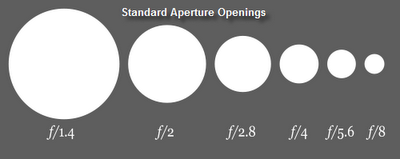
aperture size chart
Inside the lens is the aperture or the size of the hole that lets light into the device. The bigger the hole the more light that can enter the camera or camcorder. The above graphic shows a representation of a few of the aperture sizes.

Hang on, this is where it gets tricky.

The f/ stands for F-number or more commonly known as a f/stop. The smaller the f/stop number the larger the hole. The larger the hole the more light can enter the camera or camcorder.

There are lens that have f/.5 and smaller. There are also lens that can go as high as f/22 and beyond. No one standard camera or camcorder lens has all of the f/stop positions.

As you move up the f/number scale the next aperture number is half as open as the one that came before it.

Or another way of looking at it is every other aperture f/stop is twice as small, meaning f/2.8 lets in less light than f/1.4.

Some of you are thinking, hey, shouldn't that f/1.4 be a f/1.5 aperture?

It can be. There is no reason not to have a f/1.5 on a lens. Professional photographers carry a variety of lenses to fit different lighting needs. The ones in the graphic are fairly common sizes but there are infinite combination that can make a f/number.

Recording stalactites in a cave? You need a lens that can open to as much light as possible, perhaps f/1.25. Shooting on top of a snow covered mountain? You'll want a lens aperture that can reduce the amount of light, something like f/16.

Apertures of Inexpensive Camcorders

Now we are cooking. Like I said, there are two groups of lens, fixed focus and adjustable. The current majority of inexpensive camcorders have fixed focus lens. This means that there is no manual or automatic way of adjusting the focus on the lens.

(Forget about optical and digital zoom for a moment; that only brings images closer to you. It doesn't affect the focus of the lens.)

Not only is the focusing ability fixed but most of the time so is the aperture of the lens. So if you have an f/3.5 aperture on your camcorder lens but you are recording in a room that needs f/2.0 you may not have enough light.

That could be the reason some videos are dark or really grainy. I've snagged some of the aperture sizes for various pocket and web camcorders. This way we can see what the common aperture is for these type of camcorders.
  • Panasonic HM-TA1 f/2.8
  • Pure Digital Flip SlideHD f/2.4
  • Kodax Playsport Zx3 f/2.8
  • JVC GC-FM1 f/2.8
The web video/pocket camcorder manufactures have provided most of the upper level inexpensive web camcorders with an aperture that can take in a fair amount of light. In daylight there shouldn't be a problem with recording good quality video.

Inside the home, classroom or enclosed spaces there might be an issue. The Pure Digital FlipSlideHD can take in 1/2 more light that the other recorders.

Theoretically, it should do better inside. But not if it is dark or there is only one light source.

Understanding your camcorders lens and aperture size can help you record better video but it is only one part of recording equation.

In future posts I want to show you how f/stops, the image sensor and focal length all combine to record a video image that can be cruddy or freaking spectacular, if you understand how these things work in combination.

In the meantime, there are a bunch of great resources on the photography side of the fence that can go into the details or sling the tech lingo:
  • Scott Wittenberg teaches still photography and has a regular podcast. You can catch up with video demonstrations at his Photography 101 blog, his Facebook page or search for him on iTunes.
  • Darren Rowse and company have Digital Photography School where any question you could ask probably has an answer post some where in the blog.