Showing posts with label Basic Skills. Show all posts

Sunday, February 4, 2024

2024 Adobe Express and the Free Gateway

It has been a while. How many changes since 2021?  Too many. And there are more to come. Now that everyone is a content creator and some of that population is cribbing from generative A.I.

I thought I didn't have anything more to say about media creation.

I was double checking some things and I came up on the blog again.  A lot of people still check out prior posts. Solidarity to those of us that have camcorders that export in the .MOD format.

If that critter still works, use it! 

Or be brave and record in Standard Definition. I think there is still a place for it.

Story for another time.


Now, back in the day the program I knew as Adobe Creative Express had a free version that was limited in what it could do. If you wanted more features you had to pony up some cash.

This was way before Canva. 

Canva put a hurting on Adobe. Changes had to be made.

And they were, somewhat.

If you have an Adobe account, you have access to the current freemium version of Adobe Express.

You can create content for almost any social media platform and you have access to new tools as well.

So let's say you need to make a Instagram square post or a Facebook post. You can do it using a template or create from scratch.

You can use a free template or if you see that crown in the lower right portion of the template, you need to pay for it.


You have access to some of the assets of Adobe Stock media, some of the elements and other doo-dads.

It does not take long to make a simple audiogram cover or Youtube thumbnail.  Especially if you can use one of the free templates, you can knock something out in less than five minutes.


And that is the thing. If you keep it simple, you can get a lot of work done at Adobe Express. There is a learning/tutorial section to help you out if you get stuck. I stress, keep it simple. The more you want to do the more frustrated you will get because of the reminders that will pop up when you access a premium feature.

Convert to Another Format

Well... I don't have every file format but let's work with what I've got

  • AVI - Nope. There were dozens of variations of AVI so not too bummed about this.
  • MOD - Nope. Couldn't even get it to show up as a file format.
  • MOV the old school kind created for Windows - Yes but it might take a while, depending on the size of your video. Maximum file size is 1GB. 
  • MPG - Yes, shockingly it did it. It is a one minute video and it took about 4 minutes or so.
  • WMV - Nope

They have a bunch of doo-dad that if you have a use for them like converting an image or two into a .gif then go for it.

Not going into the A.I. features because I am still learning how to write an effective prompt. A necessary skill. 

So, What is the Catch?

Now as I am found of saying, free is not free. Adobe would very much like you to buy the premium subscription plan. You would have access to all templates, assets and storage for your projects.

If you like the interface and the access to Adobe Stock then the monthly subscription is $9.99 a month. You probably should do the free trial first to really confirm that this is the bees knees for you and your needs.


Tuesday, May 25, 2021

A Look at Animotica - Quick Tools

There are people that want a basic video editing software and don't want to use their phone or tablet. 

Or can't. 

This includes a lot of Windows and Android users who haven't found what they need in terms of an app or software.. 

Animotica is an affordable video editing software that has a easy user experience, social media export options and being able to see a full size rendition. Animotica comes in three versions, Free, Lite and Pro. 

In this post, I want to take a look at the Quick Tools section. There are some goodies.

What You Will Need

Familiar with navigating to folders on your computer. Drag and Drop or knowing how to find a file or folder on your computer.

Understanding that this is a basic video editor that does a lot of things. Some you want, some you don't.

If you do have audio or video on your mobile device, knowing how to transfer it to your desktop.

Devices

Windows 10 only.

Might work on a large size Windows tablets.

Disclosure

I purchased the full version of the software last year. Some of the items displayed on my screenshots may or many not be available to Animotica Free or Lite users.

Also, I have a heck of a lot of software. I have a problem. I know it.

Quick Tools

This is the dashboard of the software. There is a lot of useful stuff, some of it accessible to free users.

Animotica Dashboard

Among the tasty treats are things that come up when you need them. Who among us hasn't had the need to extract a mp3 from a video:

Or  need to only add background music:


And this is probably the time to mention the payment plan and functions.

Free Plan:
  • Access to the basic program features
  • Can freely switch between aspect ratios
  • Export in 720p
  • Limited transitions, stickers and effects
  • Videos are watermarked.

Lite Plan:

All of the features of the Free Plan plus
  • Access to all transitions
  • Export in 1080p
  • No watermark.


Pro Plan:

All of the features of the prior two plans:
  • Access to all transitions, overlays, animated gifs and effects
  • Export in 4K
  • Color adjustment, correction and effects
  • Animated text effects.

I usually mention payments options toward the end of a post. But I know how some of you think. 

"Ah, I just want to trim my video. And it will do it for free? Score!" 

You will be able to do that. But under the free version, your video will export as 720p with a watermark.

This is why reading is fundamental. 

Now this is just the Quick Tools section, not the main video editing program.  


If you are interested in that, check out the above video. Animotica straddle the fence about being an entry level video editing program with some decent features. 

It isn't for the person that want or needs something like Hit Film or DaVinci Resolve. But if you need something that can get the job done at an affordable price, this might be something to examine for your needs.


Tuesday, October 28, 2014

Creating Digital Stories - Essential Shots to Record

There are times when it is very compelling to stand in one spot and record what you see. There are other times when you have to change it up a bit. What can I say, people like variety.

In the spirit of the holiday known as All Hollows' Eve aka Halloween, and the necessity to re-new, re-use and recycle,  I bring you a visual reminder of some of the types of shots you can make with a mobile device or any camera.


A long shot to lead the person into the video; to give a hint or sense of what is to come. 


An establishing shot to help your viewers know where they are in the video. You can be off to the side or a bit above or below; fee free to change up on the angles.


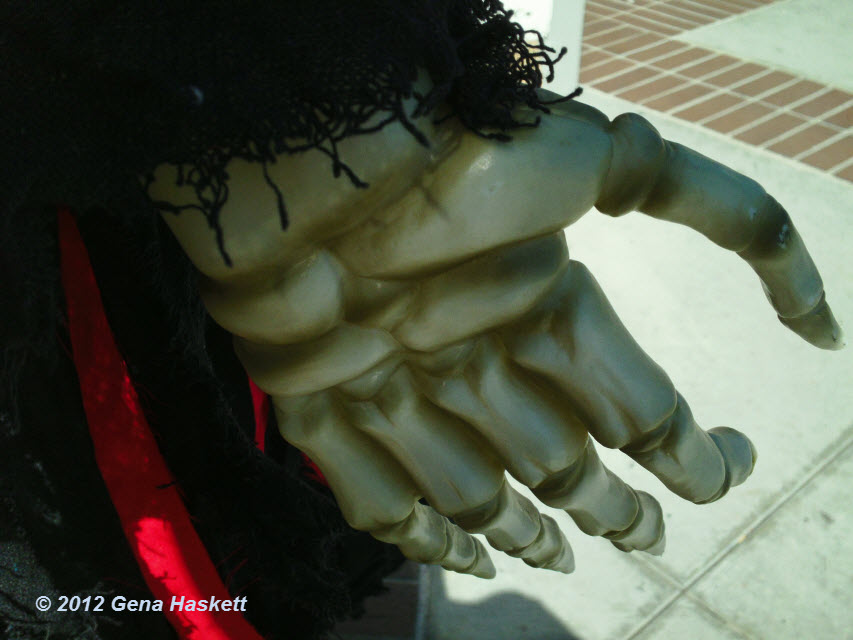
A  medium shot to get in just a bit closer to your intended. Adds a bit of focus to what is going on and that hand coming out of the lower left tells a story of its own.


A close up is intimate, forces a connection. Use cautiously with the un-dead because there may be things you don't want to see.  Again, shifting angles might help but in this ghoul's case; not so much.

The pumpkin? Ew, sinister.


The extreme close up puts your viewers nose right in it; make sure you have a very good reason for doing so.


The cutaway is a handy dandy way to use as a transition point. You can edit a cutaway into your video when you need to narrate a passagea and you need to get from one shot to another.

You want to get as many of those as you can that is appropriate for your video.


And if you mix and match well you will also have the making of the 5-Shot Method for getting the story:
  • A close-up shot of the hands
  • A close-up shot of the face
  • A wide shot 
  • An over the shoulder shot
  • A unusual or alternative view of the subject.
You get three out of five of these rascals and you are doing better than 80% of most videos. Be a 100% trouper and you will have story.

Other Posts of Interest

Sunday, April 13, 2014

5 Things to Remember for Event Recording

It doesn't matter if you record on a smartphone or a dedicated camcorder user, you can improve the quality of your recording by making sure you have what you need to get it right.

I've made okay videos and I've made stinkers. This is a 2006 converted event video from the Blip.tv days of 320x240 web video recording.


This year I want to raise the level in an upward direction. I paid serious cash money to learn how to do better so this is the game plan:

1. Pre-Planning or What Are You Doing?

Are you going to the event to enjoy it and snag a memory or two? Are you going to give the essence of the event? Perhaps you are on a story hunt trying to find the central theme of the event?

You need to think about the kind of recording you want to make and those shots that would best represent your idea. You don't have to locked into a preconceived notions of what you think you will see; we ain't the news media. You do want to record video that capture the feeling of the event.

I'm actually talking about two things. Coverage - the crowds, the vendors, the performers, the sights and sounds. You want to bank those type of recordings to give yourself natural transitions and goof protection.

The other thing is the recording you have to have to make it clear to your viewer what they are seeing and why you think it is important.

2. Charge!

Make sure that your device(s) is charged (powered) and that you have backup power if you need it. If you have a spare USB charger and cord take it along; you never know if you have access to a spare A/C (Mains for UK folk) plug.

3. Got Room on the Card?

Yes, this is a gotcha. You might have a 32GB card in the camera but you only have 6GB of recording space available for recording. Back up your prior recordings and give yourself some recording room.

4. Stabilization

I really hate the jitters in my videos. Sure, I can turn on image stabilization but there are times when I need to use the zoom lens to see someone on stage. Using the zoom lens will amplify the jitters and the shakes.

Here is the thing. I have two heavy tripods. Hardly ever use them because they are a pain to take on public transportation. I use to have a thin travel tripod; I am in search of it but I think it broke a year or two ago.

So I am looking for a compact monopod that I can carry to keep the jitters to a minimum.  There are monopods that sell as low as $16 and as high as $250+.  Find your sweet spot and stick to it.

5. Hold Still

Count out ten seconds, hold your breath for ten seconds do what you have to do. Fight the whiplash. With few exceptions if you press the record button you aim for ten seconds before you move.

Yes, your subject might move out of the shot. Or the poet moves from one part of the stage to the other. Give them ten seconds to move back. Or compose the shot wider so that it doesn't matter where they move you got them.

Bonus Tip - Have Fun.

It is a process. It is a challenge. But in the end of the day you are outside, meeting people, being exposed to new things.

Event recording for a vlog or personal use shouldn't induce pain or cause you to be a jerk.

Take it easy.

Other Posts of Interest

Tuesday, January 14, 2014

Brainstorming with Word Clouds

Getting past the grip of a solid writing block demands cunning. I tried writing it out on paper but the little haters were armed to the teeth trying to knock down what I kinda sorta wanted to do. It is important to take an idea and put it in a fixed form.


I had to get past myself. I need to see what it is that I want to do; which might not be what I actually create but I'm not at that stage yet. Hence, the word cloud.

Plunk in the words you are thinking about or potentially want to use in your project and you get them reflected back to you to do with as you please.

There are some good words in that cloud; crust, humans, evidence, grinding.  It actually gives me three additional ideas I hadn't considered.

What works for me might not work for you. There are those of us that are solid word/text people. There are doodlers, color benders and speakers into the microphone. I'm just being descriptive, not prescriptive.

Go forth and piss off your little haters. Find a way to get the germ of your idea into a fixed form so that you can commit to it. Or at least fix a starting point.


Other Posts of Interest:

Thursday, October 24, 2013

Vimeo Membership Options for Videobloggers

Time is ticking for those of you that need to download your non-episode/series videos from Blip.tv. Cutoff is November 7, 2013. One of the video web hosting options you do have for video is Vimeo. 


Vimeo is known for having a civil and creative community. At this time, they are still allowing basic users. I don't know how long that will last. Companies have bills to pa and they do that by advertising, charging users for advanced services or other forms of moolah farming.

If you are a casual once a week videoblogger Vimeo Basic might be all that you need. You can upload one high definition video a week or multiple SD videos. There are some restrictions but it is a free account. So long as you upload video or are active in watching or liking videos you are good to go.

Be aware there will be no tribute content, no copyright infringement and no intentional icky videos. I don't think they would support unintentional icky videos either. Let me be blunt; if you ex-girlfriend/boyfriend is in the video without clothing or their prior written consent then it isn't going to be shown on Vimeo.

Vimeo does want you to be aware that there are perks for paid memberships options.  If you are closer to the ProAm side of the fence you might want to give paid membership a look see.

Now, truth be told, many of my friends and acquaintances subscribe to the "roll you own" philosophy of web video. In this case, they suggest that you run your own server and manually embed your content on your blog or website.

That takes skill, money, time, commitment and resources. It can be done.

Is it easy to do? No.

So, give Vimeo some serious thought. I would also encourage you to check out some of the content on the site. You will get inspiration up the ying-yang.

Or an inferiority complex.


Other Posts of Interest


Tuesday, October 1, 2013

A Peep at Vine Journalism Awards

Vine video was introduced in January 2013. The number of dog and cat videos increased exponentially. Vine video is used for more than selfies and meal documentation. It can and is being used for journalism and behind the scenes documentation.

The Vine Journalism Awards will be held on October 2, 2013 to eliminate the best use of Vine videos in Journalism. And by best use I mean those that knew about the awards and submitted a video.


This is an example of an intern (hopefully paid) running to deliver an opinion paper to (I believe) Pete Wilson of NBC News.

The Vine Journalism Awards is a co-production of Twitter and Muck Rack, a journalism community. You can see more of the contenders at the Muck Rack Daily site.

As it is often been said, it is not what you have but how you use it.

Other Posts of Interest


Sunday, September 8, 2013

CameraSim F/Stop Simulator

I love teaching tools that help make sense of a topic. There are a number of camera f/stop simulators that can help folks understand the effects of using a specific f/stop, shutter speed and lighting.


This is one of the more interactive simulators I found. This is from CameraSim. Now, true it is designed for still photographers but video folks can learn from this app.

  1. Set the lighting, the focal lenght of your device. that should be on the lens or in the documentation.
  2. Select your Aperture on the right hand side. 
  3. If you know the Focal Length of your camera move the slider to the appropriate setting. If not, leave it where it is.
When you snap the photo you will see the if you have a good shot or not.  This is a cool way to experiment and learn about lighting, f/stops and a bunch of other stuff.

If you are recording using a Smartphone or Tablet device you have a fixed aperture.  Set it to 2.8 and make your other adjustments. This can give you a rough estimation of what your video will look like in certain lighting conditions.

Those recording video on digital still cameras will have a lot more flexibility - go wild but keep in mind that your device might require you to pre-set the f/stop before you can record.

Other Posts of Interest


Sunday, August 18, 2013

Four Questions That Can Help You Make A Better Video

This is a world of instant coffee, instant dinners and now instant video. Click, record, upload. Yes, you don't need to think about making a video anymore. Magic can happen surreptitiously. 

And yet, people still like the slow brew, nurtured, full flavored coffee, dinners and video.

It is a process. It doesn't have to be complicated. It starts with questions that you make time to answer. Those answers can guide you to making a video in a coherent and timely manner.


Not a simple question.

A birthday video for a child is not the same as one for an adult. Recording a dance recital requires different needs than a personal narrative video. Clarifying what you want to do sets the path to the next question.


What do you have to work with? Web Cam videos are great for personal narratives and Google Hangouts, not so good for a party video. A point and share camcorder or mobile phone is good for an outside party, not so good for an indoor lecture in poor light.

Referring back to Question 1, if you know that you want to do a certain kind of video that need has to match up with what you currently have available.


What you want and what you have needs to balance with Time. This sucker is a killer of more dreams and good intention that the world will ever know. You will constantly fight against time. You can get the upper hand if you know what you want, focus on it and have what you need to get it done.

Those of us that have day jobs, obligations and other time sucks have to be really cautious about making sure that we don't lose time fumbling about trying to backtrack to make something work.

That can be painful. Reduce the pain by also being aware of other resources.


You may have other resources can help you make your video.

For example; a service like Animoto can take your still photos and video and make that birthday video for you. You might want to consider a service like WeVideo, Stupeflix or FlixPress to help you get a finished video in a short amount of time.

There are pros and cons; the pros are that it is fast, easy and you will get something that folks might enjoy. It might not be a good option if this video is for business or commercial use. You have to read the terms of service to understand what you gain or lose if you use a video creation service.

If DIY is in you blood then you want to make sure that your video editing program is a good match for you, your equipment and your current skill set. You shouldn't have to fight with it to get what you want.

Take a moment to answer these questions. You'll have a better video.


Other Posts of Interest

Tuesday, August 13, 2013

Neil Hilborn's OCD Poem As Performed at 2013 Rustbelt Regional Poetry Slam

Neil Hilborn is a poet. He has known love. And he has Obsessive Compulsive Disorder. And in 2:52 minutes he is going to make you remember what being vulnerable is all about.

Mr. Hilborn's poem was recorded at the 2013 Rustbelt Regional Poetry Slam in Madison, Wisconsin.


A microphone. A camera that is in focus. A poet. Yeah, sometimes that is all you need. Nope, Not letting go of this poetry video journey.  There is something powerful in the poetic narrative that can put a serious hurt of recognition in all of us.

You don't have to be perfect.

You just have to have courage to do the work.

Other Posts of Interest

Thursday, March 21, 2013

Tribeca Six Seconds Vine Video Contest

The app isn't even six months old and there is a competition for the best Vine videos? This is...gosh I don't know what is. I have seen good well thought out Vine videos. They do exist. The Tribeca Film Festival thinks so too because this is a contest to find the best fruit of the Vine. (Yes, I typed that sentence.)


Tribeca is a respected film festival so no quibble about their effort to outreach to creative users. It is just that it seems kinda soon for a Vine competition. Before you get busy with your video creation read the rules of the contest/competition so that you know what do and not do.

 This is my quick read of the rules and my interpretation.

You have to:
  • be a US resident
  • be 18 years or older
  • have a Twitter account
  • have and use the Vine App on your iOS device
  • follow the entry and submission rules to the letter
  • not use or have appear any copyrighted material appear in your Vine
In any case, you don't have a lot of time to enter because all submissions are due on April 7, 2013 at 11:59 p.m. Don't know if that is east coast time or across the time zones so you better be safe and get upload before the deadline.


Other Posts of Interest

Tuesday, March 19, 2013

Quick Review of dSLR Movie Shooting Guide

I haven't written about book resources for a while. There aren't many new consumer level books about creating videos anymore. Last week I went to an actual bookstore and I made a trip over to where I thought they would be; jammed into the digital photography section.

There are outdated books on how to do web video; I saw plenty from 2006.  There are Pro-Am and professional books but they are more in-depth "read this and you will know everything" guides.

They are expensive.

There is a shift by publishers to focus on the digital SLR (single lens reflex) cameras that can record video. David Busch's dSLR Movie Shooting Compact Field Guide is the kind of book you want with you to help you along the way.


It helps if you have some form of actual photography or video experience; it is designed for photographers who need to make the transition into shooting video.  In that sense, it is not an entry level book.

However it is a beginner book on what to be aware of when you record video. It is a transitional skills guide. A good, inexpensive no B/S book that gets you the info you need to get it done.

It is a good primer on what you need to know to get started. The writing is tight and there is no fluffery. If you need to know about video resolution you will have a good understanding in about a page's worth of reading.

There are sections of the book that are dSLR specific but that doesn't mean that camcorder folks can't learn a thing or two. The section on stabilizing the camera applies to all users: "move your camera deliberately" is dang good advice.

This isn't just about the gear. There is also topics about how to construct a video story, the types of stories your can record, composition advice and shooting tips.

This is a slim book at 124 pages but it is full of solid info. I got a paper version for $14 retail but the book it is on  iTunes and Amazon.

This is a definite keeper for me. If you see it in a retail bookstore snag it. Those of you on-line read a sample chapter (you know where) before downloading to be sure it is a good fit for your needs.


Other Posts of Interest:


Sunday, February 24, 2013

When You Just Need a Video Trimmed

A touch up, a snip, snip or a cut and dash. You don't want titles, you don't want to add music you just need to cut the bad part out so that the good part can stand on its own.

There are video trimmers and editors that act like trimmers. Some programs have features than expected but they do not fall into non-linear editing software type programs.

I've mentioned some of these before but I haven't put them in a list format.

Be very careful about where you download software; I'll link to the actual vendor web site. Major Geeks is a known safe place. There are not a lot of safe repositories anymore so don't click just any old link in a search engine.

You have to be the first line of defense. Don't gum up your system with malware.

Avidemux Free


Avidemus Screen Shot

Avidemux has versions for Linux, Mac and Windows OS. It accepts AVI, traditional QuickTime MOV, MP4 (but not necessarily all variation of MP4) 3GP, MPEG and H.263+ but not necessarily H.264. You might need to install codecs on your system.

You do have the option to add filters to expand the program's capabilities. This software isn't hard to use but it is geared more for the techies. There is a wiki and a forum support community.


MPEG Stremclip Export Screen


MPEG Streamclip for Mac and Windows OS. Free

This has an easier learning curve than Avidemux. It works with a wide range of video formats except AVCHD or .wmv type videos You set your in and out points, choose your frame size and you can have a clean trim in no time.

You will have to have QuickTime Player installed on your system but that is a free download as well from Apple.

And now for something a little different. This is a 2010 tutorial video on Virtual Dub by World Traveler Man. This will give you some context about my statements below about this software.


VirtualDub Free Windows 98, ME, NT4, 2000, XP, Vista, Server, or newer OS

Read carefully, this is a linear editing program. It can trim video. It can do a lot of wonderful things. But the one thing it will not do is hold your hand. Not to say that there isn't documentation for the program.

There is. I'm saying that if you are coming from a Windows Movie Maker/iMovie entry level experience you will have issues learning this software.You might have to install a codec package. You might need to understand video concepts before you can use it.

Like Avidemux, you can add filters and gizmos to it. This program was created before the commercial release of consumer non-linear editors.

If you are tech inclined and have an old operating system like Windows XP this could just what you need. Do not expect that it will be able to handle AVC or AVCHD or even MP4 type videos without a filter or program update.

Who is it for? If you have standard definition video this could work. If you want to have more control of what you can do with video but you don't want a system resource hog this could be your software.

So these are the reliable, stable no monkey business type trimmers and editors that you can use; provided you understand the limitations and benifits of each program.


Other Posts of Interest

Wednesday, January 16, 2013

Video Advocacy Resources You Can Use Now

People have created books, magazines and slideshows to help explain a cause, project or situation. Using video to bring awareness to a problem is nothing new; non-profit agencies, advertising companies and people with money have made these kinds of films and videos for years.

You don't have to be a Hollywood actor to fund a project. You only need a recording device and an idea that your local media will not pay attention. If you heart is a pumping to do good then there are resources for advocacy and participatory video.

The Digital Naturalist Blog explains the five types of advocacy videos. This blog is focused on not only the how of telling the story but the realities of competing with viral cat videos and popular media.

WITNESS Advocacy Training Guide blog is a detailed guide on planning an advocacy video to distribution. It covers recording, editing, sharing concepts and even if you don't want to create a campaign you should still go over their to learn how to produce an effective video.

This is an example of one of their videos showing who they are and what they do. It is not the typical non-profit video.


On the main WITNESS site there is additional info on creating video for advocacy.

The North Carolina Justice Center has a 20 page PDF manual on some of the same topics. I don't believe, as stated in the guide, that you need $800 and a Macintosh to get started but different strokes for different folks.

One of the sections of the manual gives good information about how to conduct interviews and get what you need to make a quality video.

There you have it; three solid resources to dive into and help make a change. There are people who say why bother. We need to bother those people to make a positive difference.

Other Posts of Interest


Wednesday, January 9, 2013

In Search of A Look for A Title Card

I'm deep in the lab working on creating tutorials on feature found in video editing software. Not that the world needs another software tutorial but there is a lot of room for improvement. God bless teenagers who make tutorials without fear. I just can't listen to a another tutorial where they say "whateves" as a placeholder; it wears you down after a while.

Anyway, this is more of an idea generator for those that want to step a little bit away from the canned look.

Keep It Simple


You can make your own titles. Your editing software might have title templates that you can use or adapt. This what one of those templates look like after I've tweeked it a bit.


The red band around the screen is the outline of the Safe Title Area where no title or anything else should extend past that point. For web video it might not be a big deal but then again a lot of viewers are porting video on their televisions and other devices.

Now I could keep it black, nothing wrong with it, but I have options.


An old school blackboard, well I guess slateboard conveys an academic or educational tone. That is one of the things you will have to consider, does the title convey the subject or feeling of your video.

I'm making a software tutorial so it can work. Then again it might turn off those that may think that the video is going to be boring. You have to think about the potential associations with an image.

The Background Should Not Conflict With Your Text

I purchased a presentation program that had a number of background images. This is one of those images, a silk type background.

Yest, the text in the block is fine but viewers can't read the white text on a blue creme background. Can't tell you how many videos I've seen that don't pay attention to readability.


This image is better suited to weddings or formal occasions. Again you have to think about your intended and unintended message that can be transmitted to your viewer.

Size Appropriately


The background image is 640x480. I'm recording in 1280x720. As you can see, there are black bars on the side of the screen. I don't want black bars.

Inside many video editing programs is a Pan and Zoom feature that will allow you to match the photo to your video's dimensions.


As you can see, the background is cropped to match the video. That can be a good thing or a bad thing.

If your software does not have a Pan and Zoom type feature you can get the same effect using a photo editing software to crop your background into the right size of your video. The beloved Irfanview or some of the on-line photo editing applications will work fine.

In this case, I've solved the bars problem but this background isn't appropriate for the kind of video I'm doing so this is the next possibility.


This is more like it, I have color compatibility, your can read the text and nothing looks wonky, i.e. I don't see pixels or banding.

I have more experimenting to do so dig you later.

Other Posts of Interest 

Thursday, December 20, 2012

Moving Forward - Amber and Nash's Video

I try to stand and beat the drum for more women to use video to tell their stories. I believe we are transformed into a higher purpose of being when a personal story help someone days or weeks down the line.

You never know who will be helped. Sometimes they will tell you. Most times they will not.

We gotta make the effort. This is a video by Amber and Nash that folks have been point other people to by e-mail, Twitter and Facebook.

For my hearing impaired peeps this is a video without voice, there are text cards.


It doesn't have to be fancy. It just needs a starting point.

You are the starting point.

If you are having a bad day you should watch it. If you are having a really bad day you gotta watch it.

Otherwise, watch the video.


Other Posts of Interest:


Monday, December 17, 2012

There Is No Secret to Making A Video

I just came away from a bad blog trying to game the system by having people pay for crappy private label regurgitated fecal matter. I have ranted about this irritation in previous posts. It isn't going away but I'll fight it with all that I have to give. You don't have to pay for bad information.

There are so many resources that really try to give you the straight scoop. Part of my mission is to get you what you need to make videos or to point the way to others that communicate the concept better.

There are creators that come at video education from a sales and marking background. There isn't a thing wrong if the person actually has a grip. There are the technoids, the Pro-Am circuit and everything else in-between.

You know what? You have what you need and the rest can be acquired when you are ready. So here is the short version:

Record/Capture


You can record with a:
  • WebCam
  • Smartphone
  • Media player like iTouch, 5 Generation Nano or any multifunction MP3 player
  • Tablet
  • Still Photo Cameras with video functions
  • Camcorders
  • Screen Recorders 
  • Game Engine Recorders
You have to work hard not to have some kind of recording device these days. Not all of the the above devices will be the best quality but you have what you need to get started.

Edit


You don't have to edit. You probably should but you don't have to. If your video is longer than a minute, yeah you need to edit.


On the Mac OS you have iMovie. On the PC side you have various incarnations of Windows Movie Maker. Those are the known quality freebies that will work with your system.

I hear tell that Lightwork for Linux is just about to come out of Beta. Long have the Linux crowd has suffered so this is welcome news.

For under $100 you can find excellent user friendly video editing software. You can even find good stuff for under $60.  Paying for quality video editing software can make the process at a lot easier.

Export/Upload


If you choose to edit you can export the video to a desired format, DVD for those relatives that do not do the Internet. MP4 for uploads to video distribution services like Vimeo and YouTube or your social media pipeline.

If you don't choose to edit then you can use the service of your choice to transfer a copy of the video from your device to a distribution service or social media account.

That is what you need to know. Now it isn't everything that you need to know. This is the foundation or your starting point.

Other Posts of Interests

Tuesday, November 27, 2012

If I Had Just 5 Minutes

Making a video can be as easy or as challenging as it you need it to be. One of my goals is to make that process a bit easier to understand. If I have only five minutes to share with you how to make your video better this is what I would tell you at a high rate of speed.

I'm going to use the word device because people are now recording on smartphones, tablets, camcorders, still cameras and all manner of gadgets.

Be Aware of The Light
  • Make sure that you have the right light settings on your device. Automatic is fine if you are a newbie. When you get more experience you can use your devices setting to match the actual lighting types, Daylight, Incandescent, Tungsten. Hmm, I need to find out what class LEDs come under.
  • Don't shoot into the sun with people in front of you. 
  • Don't have them squinting into the sun either. 

Give Yourself Coverage

Once again, I will reminded you of the 5-Shot Method, it is not just for reporters recording quick video:
  • A close-up shot of the hands
  • A close-up shot of the face
  • A wide shot
  • An over the shoulder shot
  • A unusual or alternative view of the subject. 
This gives you choices when you edit your video. If a shot doesn't work out you have other choices you can plug into the void.

Stabilize The Shot
  •  Use a tripod when you can. For small camcorders there are tripods that you can carry in a messenger size bag. 
  • If you use a tripod don't forget to turn off the image stabilization if you have it.
  • If you don't have a tripod then learn the techniques to properly hold your device.

Master the Audio
  •  Know where the microphone is on your device. Sounds stupid to say but with pinhole mics on handheld devices it is easier than every to accidental cover the microphone with your finger.
  • If possible use an external microphone to record audio. Another option is to use a recorder like the Zoom H1 that will act as a primary audio recorder.
  • Be aware if you hear the sound of wind, air conditioners, electrical devices and any other audio killers. Deal with it if you can. If not, you might with certain software be able to control them when you edit the video. But don't count on it.

Other Posts of Interests

Tuesday, November 13, 2012

A Look at Bell & Howell Take1 Under $50 Camcorders Review

So you are in the store, walking around in a daze and can't believe the rudeness of people snatching stuff off the shelf. Maybe next year Buy Nothing Day will have more meaning to you.


It is too late for that; you see it on the shelf and you gaze at the bubble wrapped camcorder. It is a Bell and Howell Take 1. It is only $39.99.

Really look at the photo. Shiny surface, probably plastic. Small LCD viewer. The actual iris area is very small, which to me indicates that you'd want to use this for outside recording.

Old school legacy name but this is another instance where the name was license out to another company for camcorders. The Bell and Howell company still exist, but they are not in the media business any more.

The Specs

  • Recording mode 6480x480 VGA standard definition
  • Takes photos at 3.1 Resolution
  • 1.5-inch LCD display
  • 4X Digital Zoom
  • Accepts SDHC memory cards up to 16GB
  • 2 AA Batteries

I had to go to four different web sites to get the above information. The reason being there was no product web site that I could find for the actual vendor.

There is a big brother version of this camcorder that does have HD. It is also called the Take 1 but it will have the HD on the body of the device.

Should you have a question or problem (and the website is not on the package) you will have no where to go for help but to the store where you bought it. Who may or may not take the camcorder back or charge you a restocking fee for returning the item.

Depends on where you buy it and they will not be happy to see you.

Buy It or Not?

Eh, look this is a older model camcorder. I could see a use for it as a outside reference camcorder or you can't afford a GoPro and you strap this to your bike. I would not use it as my primary recording device.

At best, you are going to get a fair image outside if you have enough light. I have no idea of the recording format. It might be on the package. I'd want to know that before purchasing.

I'm waffling.

It comes back to knowing why you want to buy a camcorder. If you are one of the broke folk and want to just dip into trying web video and using this as a starter camcorder, then yes, if this is the best that you can do.

If you want a back-up camera for the office or creative experimentation then okay.

For the wedding, No!

For a recording the baby, No!
For a gift to your grandson/granddaughter, maybe.


Other Posts of Interest

Thursday, November 1, 2012

VloMo 2012 and Elsie Escobar

It is that time again when writers, pie makers and men with chins decide to their thing for thirty days straight. Videobbloggers are no exception so November has traditionally been (International) Videoblogging Month.

The goal is 30 videos in 30 days. They don't have to be great videos.  Or long. Short is good. I've set up a gallery page at http://vlomo2012.tumblr.com

I'm not sure who is participating this year. Many folks have moved away, burned out or super busy. I have an idea on what to do if that happens. Perhaps a retrospective of what was or a look at people using video to communicate with other communities.

Not sure how this will play out.

One person I know is going to go it is Elsie Escobar.


She has been doing this a while and has excellent tips on just how easy it is with a smartphone or other tools.

It is early but no sittings as yet.

Other Posts of Interest